Free Favicon Generator: Create a Professional Website Icon
Give your website a recognizable identity with a favicon. Discover what favicons do, which icon sizes matter, and how to create and install website icons using Glassever's free online Favicon Generator.
A practical guide for website owners, developers, designers, and digital creators.
First impressions matter when someone visits your website. Your logo, colors, layout, and content all contribute to your online identity. Even a small detail, such as the icon displayed in a browser tab, can help people recognize your brand.
That small icon is called a favicon. It commonly appears beside a page title in a browser tab, in bookmarks, and in other browser interfaces. Without a suitable favicon, a website may display a generic icon instead.
Creating favicon files for different browsers and platforms can take time if you resize and prepare each file manually. A favicon generator simplifies this process by producing the required assets from a single image.
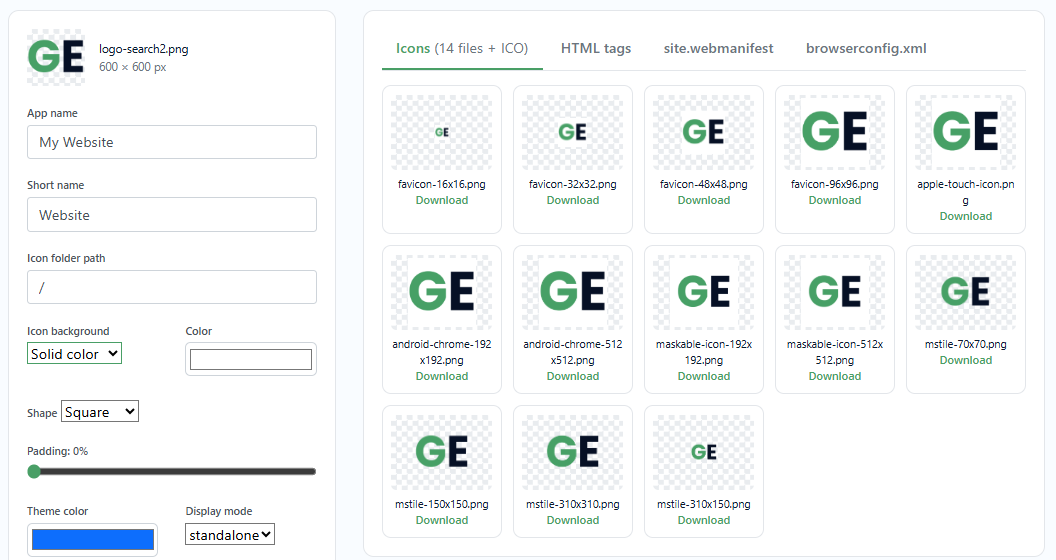
With Glassever's Free Favicon Generator , you can create favicon assets, customize available settings, generate HTML tags and a web manifest, and download a ZIP package.
In This Article
What Is a Favicon?
A favicon is a small graphic associated with a website. The word combines the terms "favorite" and "icon." Favicons help distinguish one website from another when people have multiple browser tabs or bookmarks open.
A favicon can use a simplified logo, a brand symbol, a letter, or another recognizable graphic. Because it is displayed at a small size, a clear and uncomplicated design usually works better than a detailed image.
Depending on the browser and platform, favicon assets may appear in browser tabs, bookmarks, browser history, pinned shortcuts, or other website-related interfaces. Different environments can require different file sizes and formats.
What makes a good favicon?
Choose a recognizable symbol, maintain good contrast, avoid unnecessary details, and test how your design looks at small dimensions such as 16 × 16 pixels.
Why Are Favicons Important?
A favicon is a small part of your website's visual identity, but it can make browsing more convenient and help reinforce your brand.
Brand Recognition
A consistent icon helps visitors identify your website among multiple open tabs.
Professional Appearance
A carefully designed favicon adds another finishing touch to your website's presentation.
Easier Navigation
Recognizable icons can help users locate websites in their bookmarks and tabs.
Platform Compatibility
Appropriate icon files help support the favicon requirements of different browsers and devices.
Favicons are not a shortcut to better search rankings. Their main purpose is identification and presentation. Search engines may use favicon assets in certain search interfaces, but displaying an icon is subject to their requirements and is not guaranteed.
How Does a Favicon Generator Work?
A favicon generator takes a source image and prepares icon assets for different sizes and use cases. Instead of manually resizing the image and writing every HTML reference, you can generate a collection of files in one workflow.
Glassever's Favicon Generator supports PNG, JPG, WebP, and SVG source images. A square image of 512 × 512 pixels or larger is a useful starting point.
Choose Your Source Image
Start with your logo or another graphic that represents your website.
Customize the Icon
Use the available settings for your app name, icon folder, background, shape, padding, and related options.
Generate the Favicon Package
Prepare the supported icon files, HTML tags, manifest, and related configuration files offered by the tool.
Download the Files
Download the generated ZIP package and extract its contents.
Install and Test
Upload the files, add the generated HTML references to your page head, and verify the result in your browser.
How to Use Glassever's Free Favicon Generator
Follow these steps to prepare a favicon package for your website using Glassever's online tool.
Create Your Website Icon
- Open the Glassever Favicon Generator.
- Select or upload your logo image.
- Configure the available name, folder, background, shape, and padding settings.
- Review the generated icon assets and available HTML and manifest options.
- Download the ZIP package.
- Upload the generated files to your website and add the relevant HTML tags.
The exact files you need depend on your website and target platforms. Review the generated HTML tags and manifest before publishing, and make sure every referenced file is available at the specified path.
Common Favicon Sizes and Formats
Websites may need several icon sizes because browsers, operating systems, and installed web applications use favicons in different contexts.
| Size or Format | Common Purpose | Important Note |
|---|---|---|
| 16 × 16 px | Small browser tab icons | Keep the design simple and recognizable. |
| 32 × 32 px | Browser icons and higher-density displays | Check that fine details remain visible. |
| 48 × 48 px | Some desktop and shortcut contexts | Usage depends on the platform. |
| 180 × 180 px | Apple touch icon | Used for supported iOS home-screen shortcuts. |
| 192 × 192 px | Android and web app icon use cases | Reference it in the appropriate manifest. |
| 512 × 512 px | Large web app icon use cases | Useful as a high-resolution source asset. |
| ICO | Traditional favicon format | Can contain multiple icon resolutions. |
| PNG / SVG | Modern icon formats | Browser and platform support varies by format. |
These sizes describe common use cases, not a requirement to include every size on every website. Choose the assets that match your browser support, website setup, and any web app features you use.
How to Install a Favicon on Your Website
After generating the files, you need to make them accessible to browsers and reference them from your HTML document. The generated HTML tags can simplify this step.
Step 1: Extract the Downloaded Package
Open the ZIP file and review the included favicon images, HTML snippet, manifest, and other configuration files. Keep the expected filenames unless you also update every reference to them.
Step 2: Upload the Files
Upload the generated assets to the directory configured
in the tool. For example, if your icons are stored in
a folder named /favicons/, the paths in
your HTML and manifest should point to that directory.
Step 3: Add the HTML Tags
Add the relevant generated link elements inside your
document's section. A basic
PNG favicon reference can look like this:
This is an illustrative example. Use the actual filenames and paths produced by your package, and include only references to files you have deployed. The generator's HTML output may include additional tags or use different filenames.
Step 4: Check the Web Manifest
A web manifest provides metadata and resources for supported web app experiences. If you use one, verify that its icon paths, sizes, and image types match the files you uploaded.
Step 5: Test Your Website
Open your website in a browser and check the tab icon. You can also inspect the icon URLs directly to confirm they return the correct files. Remember that browsers can cache favicons, so an older icon may remain visible temporarily after an update.
Favicon Design Best Practices
Use a Simple, Recognizable Design
Small icons have limited space. A simplified brand symbol or initial is often easier to recognize than a complete logo containing small text and many details.
Start with a High-Resolution Image
A square source image with sufficient resolution gives the generator more information to work with when producing smaller variants. Avoid enlarging a tiny source image because it can appear blurry.
Check Contrast and Backgrounds
Make sure the icon remains distinguishable against light and dark browser interfaces. Consider the background settings available in the generator and check how transparent areas appear on different platforms.
Allow Appropriate Padding
If your logo touches the edges of its image, the resulting favicon may look cramped. Suitable padding can make the design appear more balanced at small sizes.
Preview the Smallest Sizes
A design that looks excellent at 512 × 512 pixels may lose clarity when reduced to 16 × 16 pixels. Review small previews and simplify thin lines or fine details when necessary.
Keep Your Branding Consistent
Use a favicon that matches your website's visual identity. Consistent colors and recognizable shapes help visitors associate the icon with your brand.
Common Favicon Problems and How to Fix Them
My Favicon Is Not Showing
Check that the HTML link tag is present in the page head and that the referenced file exists at the expected URL. Also confirm that the image format and MIME type are appropriate.
The Old Icon Still Appears
Browsers can cache favicon files aggressively. Try a hard refresh, inspect the page in a private browsing window, or use a versioned filename when updating your website assets.
The Icon Looks Blurry
Use a high-quality source image and simplify intricate designs. Review the generated small-size assets instead of relying only on the original large image.
The Icon Has Unexpected Background Colors
Review the source image's transparency and the generator's background settings. Different platforms may handle transparency and icon presentation differently, so check the relevant device or browser.
My Manifest Icons Are Missing
Open the manifest and check the icon paths, dimensions, and file types. Make sure each referenced asset is uploaded and accessible from the URL specified in the manifest.
Who Can Benefit from a Favicon Generator?
A favicon generator is useful for a wide range of website projects, whether you are launching a new website or updating an existing brand.
- Website owners: Add a recognizable icon to a new or existing website.
- Web developers: Prepare favicon files and HTML references efficiently.
- Designers: Adapt brand graphics for small icon dimensions.
- Bloggers and publishers: Give articles and websites a consistent visual identity.
- Online businesses: Keep website icons aligned with their brand identity.
- App developers: Prepare icon assets for supported web app use cases.
Make Website Setup Easier with Glassever
Favicons may be small, but preparing them correctly is an important part of finishing a website. Choosing a recognizable design, generating appropriate sizes, and installing the files correctly helps your website present a more consistent identity.
Instead of manually resizing every icon and writing each reference from scratch, use Glassever's free online tool to prepare a favicon package and the accompanying setup files.
Ready to Create Your Website Favicon?
Turn your logo or image into a favicon package and prepare your website icons with Glassever.
Try the Free Favicon Generator